Installing the CodeLogic SQL Agent (Windows)
The agents send metadata to the CodeLogic Server, they are installed on the servers upon which the applications or databases are running. The applications and databases to be scanned are specified in the agent configuration files.
Install a Certificate
Important
If you are using an internal Certificate Authority, ensure that the necessary root certificates are added to your system.
See Trusted Root Certification Authorities Certificate Store - Windows drivers.
If you are not using HTTPS skip to Download the Windows SQL Agent.
IMPORTING ROOT/INTERMEDIATE CERTIFICATE TO JDK
& 'C:\Program Files (x86)\CodeLogic\sql\AdoptOpenJDK\bin\keytool.exe' -keystore "C:\Program Files (x86)\CodeLogic\java\AdoptOpenJDK\lib\security\cacerts" -storepass changeit-alias codelogic -file path\to\yourCertificate.cer
Download the Windows SQL Agent
Download the installer from your CodeLogic server package repository. In PowerShell:
Invoke-WebRequest -Uri "http://your_server/codelogic/server/packages/codelogic-sql.msi" -OutFile "codelogic-sql.msi"
Alternatively, from Command Prompt or PowerShell:
curl.exe -O "http://your_server/codelogic/server/packages/codelogic-sql.msi"
Replace your_server with your CodeLogic server hostname. You can also open that URL in a browser to download the file.
Run the Installer
- Double-click the downloaded codelogic-sql.msi icon to begin installation.
- Read and Accept the License Agreement and click Next.
- Enter the IP address of the CodeLogic Server and click Next.
- Optionally, enter a descriptive name for the agent.
- Complete the installation.
Execute or Start the Agent
Note
The agent must not be running for an interactive session to start.
The CodeLogicSQL Agent (Windows) can be executed through a Command-Line Interface (CLI) or started through the Graphical User Interface (GUI).
The Windows CLI is in C:\Program Files (x86)\CodeLogic\sql\run_agent.bat.
A list of commands executed while in the shell is saved in a text file of the current working directory.
You may be required to start a cmd terminal as an Administrator.
Commands
cd "C:\Program Files (x86)\CodeLogic\sql"
SET JAVA_HOME="%CD%\AdoptOpenJDK"
%JAVA_HOME%\bin\java -Dspring.profiles.active=interactive -jar "%CD%\cc-java-agent-main.jar"
Alternatively, the run_agent.bat script is used to run the agent interactively.
Commands
"C:\Program Files (x86)\CodeLogic\sql\run_agent.bat"
Double-click the SQL Agent CLI shortcut on the desktop or from the Start menu below CodeLogic.
The agent starts in interactive mode. See Executing Agents Interactively via the CLI.
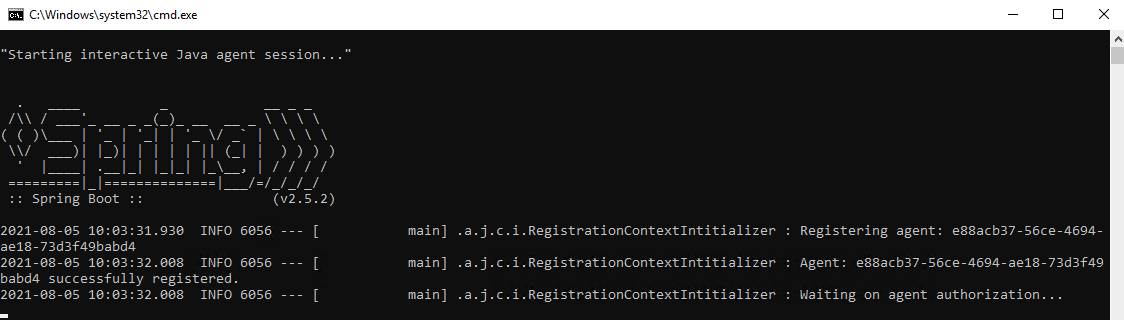
Important
If the application.yml file is not configured, the agent will not start:

Authorize the Agent
For security, agents must be authorized before they will send metadata to the CodeLogic Server.
Obtain AGENT_UUID and AGENT_PASSWORD from your CodeLogic administrator, or set these environment variables before starting the agent. If credentials are not pre-provisioned, the agent may register with the server and await administrator approval before scans are accepted.
Next Steps To run a scan immediately, see Binary Scanning via Command Line (SQL). To configure scanning, and set up a scanning schedule, see Configuring the CodeLogic SQL Agent.